Scaling, measured
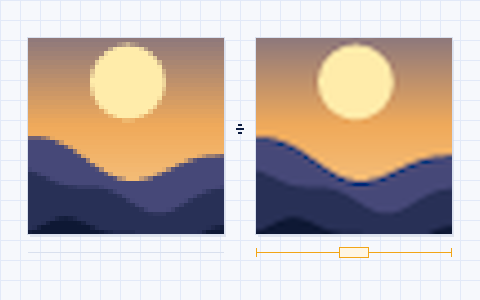
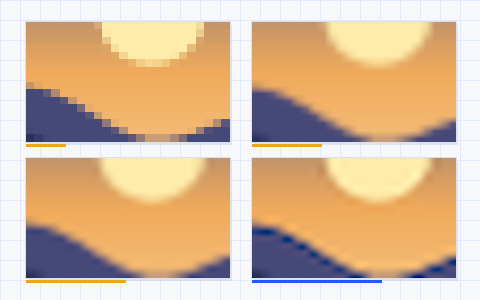
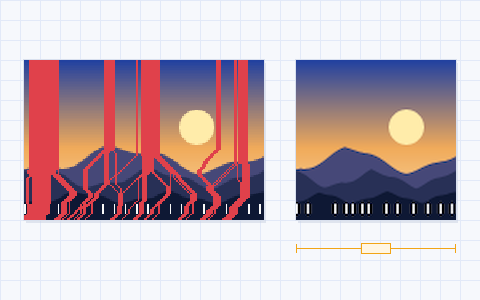
Scaling changes a picture’s pixel dimensions. Every way of doing it is an estimate of what the picture would have looked like at the new size, and the estimates differ: some keep edges hard and blocky, some smooth them, some sharpen them and leave faint halos. ImageScaling computes all of them properly and lets you see the result at the pixel level before you download.
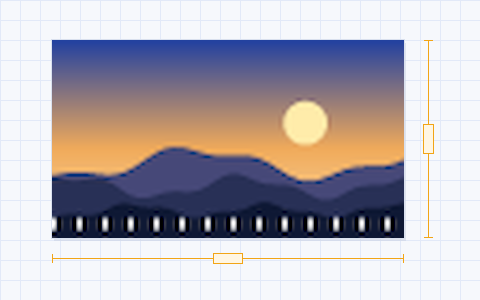
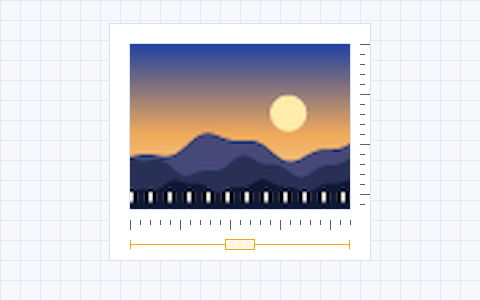
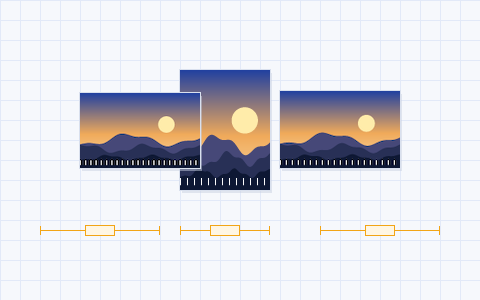
The rulers around the canvas are in output pixels. The amber dimension lines and the readout under the settings give the exact width, height, megapixels and file size, so the number in your upload form or print order is the number in the file.
What happens when you press Scale
The work is done by a scaling engine running in a background thread of this tab:
- Each pixel is converted from sRGB to linear light and weighted by its transparency, so colours average the way light does and transparent pixels never leak a fringe.
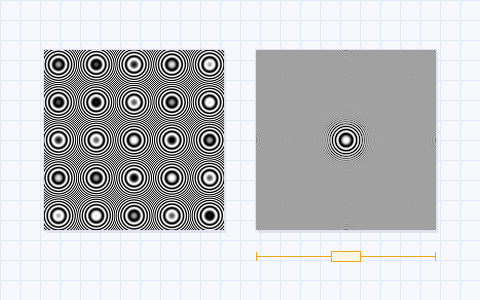
- A separable filter is applied — horizontally, then vertically. When reducing, the filter is widened to cover every source pixel under each output pixel, which is what prevents moiré and jagged lines.
- Values are converted back to sRGB and encoded as PNG, JPEG or WebP. For print sizes the DPI is written into the JPEG or PNG header.
Which method should I choose?
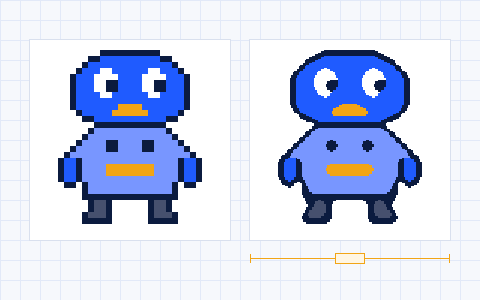
Leave it on Auto unless you have a reason not to. Auto uses Lanczos-3 for reductions and for enlargements up to 2×, and Mitchell above 2×, where a three-lobe filter starts to ring around hard edges. For pixel art use the Pixel art tab; for photographs that need real new detail, switch the engine to AI detail ×4. The comparison lab shows any four methods on the same crop side by side.
Questions
Can I scale an image without losing quality?
Reducing a picture always discards pixels, but done properly (an anti-aliased filter in linear light, which is what this tool does) it loses nothing you could see at the new size. Enlarging cannot recover detail that was never captured; a good filter keeps it smooth and sharp, and the AI engine can rebuild plausible edges and texture.
What does “linear light” mean, and why is it on by default?
Pixel values in a JPEG or PNG are gamma-encoded: value 128 is not half as bright as 255, it is about a fifth. Averaging those numbers directly — what most resizers do — darkens fine bright detail and muddies colour edges. With linear light on, every pixel is converted to physical light before it is weighted and converted back afterwards. The test chart’s one-pixel checkerboard shows the difference: reduced in linear light it matches the light grey patch beside it; reduced the naive way it matches the dark one.
How large can the output be?
Up to 16,384 pixels on either side and 100 megapixels in total, which is around the limit browsers can encode reliably. AI enlargements are additionally limited to 48 megapixels on desktops and 16 on phones; a larger request reduces the input first and says so.
Which file types can I open and save?
Anything your browser can decode: JPEG, PNG, WebP, GIF (first frame), BMP and AVIF everywhere, HEIC in Safari. You can save as PNG, JPEG or WebP; Safari saves PNG when WebP is requested and the result panel tells you when that happens.
Is my picture uploaded anywhere?
No. Decoding, scaling and encoding all run in this browser tab, and the scaling engine runs in a Web Worker with no network code in it. The only download the site can make for you is an AI model file, and only after you press the button that names its size — that request contains no picture.